Find What You Need in P21
What do you need to know about today?
If you’re entering a customer order, you might need to know about on-hand inventory. If you’re fulfilling that order in the warehouse, you probably need the same information. But two people may go about looking for that information in different ways. The Macomb Group’s Prophet 21 (P21) software is designed to let you search the way that makes sense for you.
Menu Quick Search
To start your search, you first need to see the Menu sidebar. If it’s hidden, simply press Alt + D to open it. Now you’re ready to perform a quick search:
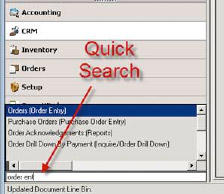
The location of the Quick Search box.
- Move your cursor to the Quick Search box; it’s the blank box at the bottom of the sidebar.
- As you type in the box, the system will search for any screen you have access to that contains the text you are typing.
- You see the results in the window above the search box.
Give it a try. Once they become used to the quick search, many experienced users rarely use the menus again.
Item Search
There are a few ways to search for a specific item:
- F5 will bring up the Item Search dialog box with Short Code as the default search field.
- Ctrl + F will bring up the Item Search dialog box with Item ID as the default search field.
- Ctrl + Alt + F will bring up the item search dialog with the Item Description as the default search field.
If you prefer to use the Advanced Search dialog box, anyone in the IT department can set your login to default to that setting.
Remember, your IT department is your best resource for any computer or Prophet 21 support.
[cta]Have a question about P21? Contact IT at support@macombgroup.com.[/cta]